Friday, 15 May 2015

Sunday, 15 March 2015
Bing Rewards Tool | LightningXD
We've made lot's of things over the past but this is the best!
Why choose our service?
Our Bing Rewards website is one of the best Bing Rewards tools known to man! The system we created is running 24/7, when we set it up it took around 1 month! What’s the best thing? The best thing about our tool is that it’s fully automatic and it does both Mobile and PC Searches for you, daily! You don’t have to do a thing! We have new features on the way and a new set of tools coming! So stick around and go and check this tool out!
Why did we make it?
We decided to make it after our success with our Instagram likes, comments & followers website. We would like to point out we don’t do this stuff for money, we do this for fun, and this is more of a project than a service, please note that we greatly appreciate donations and people who share our sites!
How does it work?
When you submit your details it is then sent off to one of our databases and it’s then placed in a waiting list with other users, we don’t see the accounts going through our system, we only see how many are waiting and how many have used this service. Your passwords are hashed and when you next up the program decodes the password and does as many searches as it can mobile and PC both combined will provide you around 56 – 70 points a day!
Upcoming Features
- Tracking Page (Users will be able to see where they are in the queue and they’ll be able to pay to get their account to the top by buying premium!
- Users will soon be able to submit multiple accounts at once.
- Users will have to read a Users Licence and Terms & Conditions
- Mailing lists – For updates
- Error Alerts – To tell users if we were unable to complete the searches on their account.
There’s a lot of updates to come, and a ton of new features! Stick around and don;t forget that sharing is caring, so share this with your friends!
Want to stay updated with updates for this website and Bing Rewards? Subscribe to our mailing list!
Our Bing Rewards Website – bingrewards.cf
Tuesday, 12 August 2014
Have you ever wanted your own domain name, or maybe your own website, but for free? Well now you can! Read this tutorial and you’ll learn how to make unlimited domain name and get the world’s fastest web hosting for free!
Your only going to need a couple of minutes and an email, that’s all!
Tutorial
Looking for a slimline tutorial? (Just with steps) Click Here
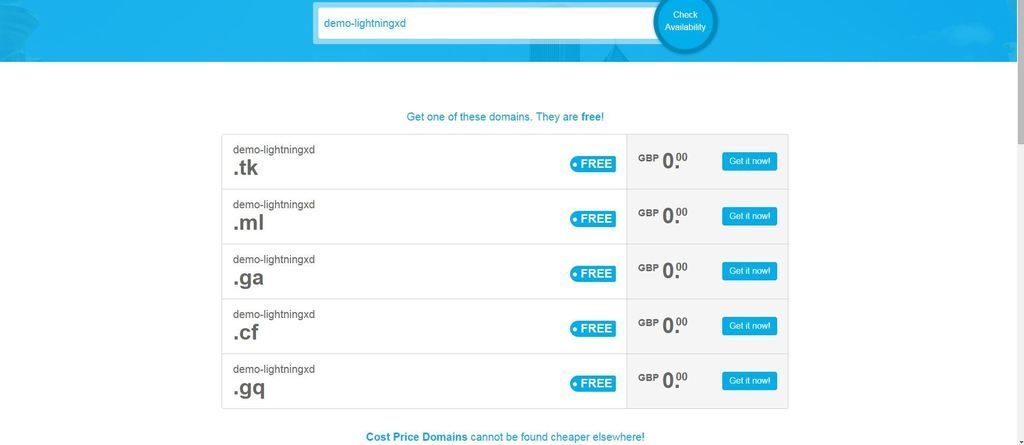
Simply go to freenom.com and enter the name of your company or anything else you may want, for this tutorial we’ll use demo-lightningxd. Once you’ve decided on the name, simply type it in and press enter.
 Once you’ve entered the name you’ll be directed to a page full of available and unavailable domain names. This page also contains the free domains at the top and the domains you need to pay for bellow.

You can pay if you decide to, but in this tutorials we are trying to keep everything free. We decided to go for the domain demo-lightningxd.cf. Select the domain that you would like, once you’ve got it, click “Checkout”.
 Now make sure you select the longest time possible to get the most out of your free domain (BTW – You can re-register the domain after one year). Press continue, if it worked you should see this message
 IF you’ve seen this message your good & fine to continue.
Now go to Domains > My Domain and select Manage Domain button on the one that you’ve just registered.
IF you’ve seen this message your good & fine to continue.
Now go to Domains > My Domain and select Manage Domain button on the one that you’ve just registered.

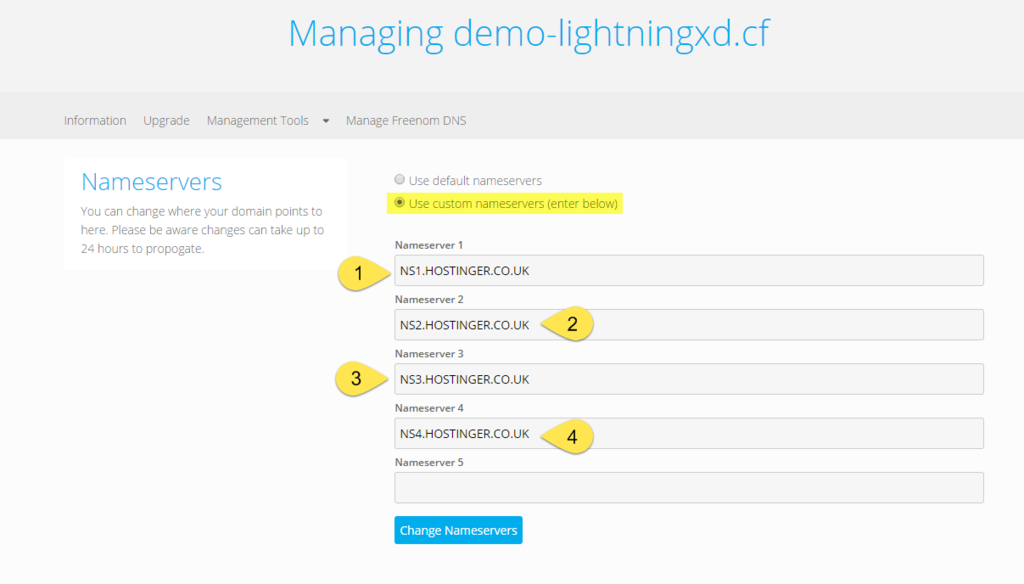
Now go to Management tools > Name Servers. Make sure to tick “Use custom nameservers”, then enter the following name servers:
NS1.HOSTINGER.CO.UK
NS2.HOSTINGER.CO.UK
NS3.HOSTINGER.CO.UK
NS4.HOSTINGER.CO.UK

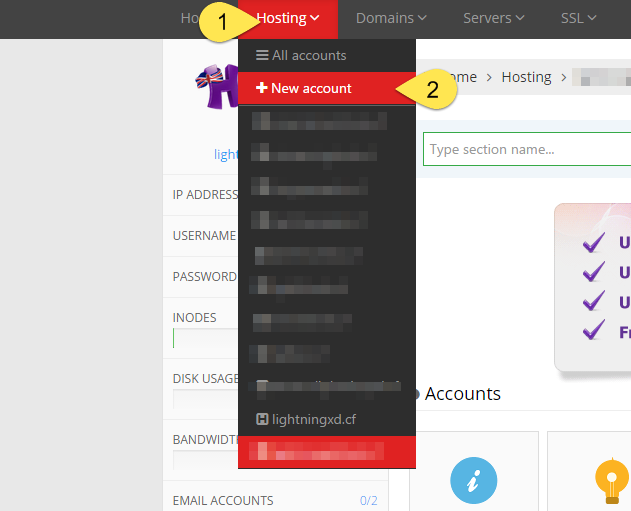
Now you’ve setup your domain name and changed the name servers, we now need to create a web hosting account to do this visit hostinger.co.uk, create an account using your email, Google Account or facebook account. Once you’ve signed up you’ll need to add the website to your hosting account, simply go Hosting > New Account:

Select the free plan.
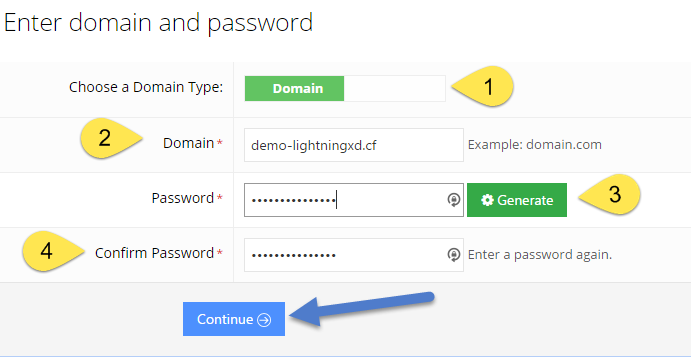
 Select Domain (Change it from Sub-Domain), enter your domain and passwords.
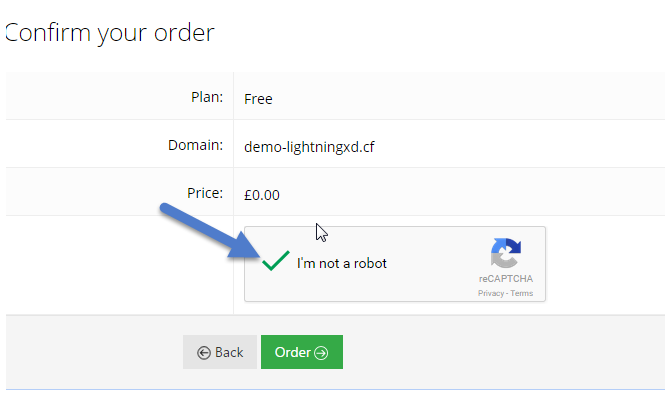
 Press continue, then enter the Capture Code (Only if it is needed), and press order.
 You’ve now just finished getting a free domain and setting up web hosting. to edit your website just click on your domain and click manage, you can find details about your website by pressing details, you can also find FTP login info there too!
Tutorial

Subscribe to:
Comments (Atom)